![become1_Logo_black.png]](https://help.become1.de/hs-fs/hubfs/become1_Logo_black.png?width=100&height=33&name=become1_Logo_black.png)
💡 Important prerequisites before starting
-
Email address: It is mandatory to use your own email address during the opening process, the one with which you are registered as an administrator at become.1. Do not enter the email address of a managing director here if they do not manage the account themselves. Otherwise, this will lead to linking errors later when allocating budgets.
-
Power of representation / power of attorney: The process must be carried out by a legal representative (e.g., managing director/management). If you open the account as an administrator without legal power of representation, you need a power of attorney signed by the management. This is included in your onboarding documents.
-
Have your tax number ready: The company's tax number is a legal requirement from the Ministry of Finance. Although it can be submitted later in the process, it must be provided within 90 days, as the account will otherwise have to be blocked.
🛠 Step-by-step guide to opening an account
Step 1: Navigate to the Card section
- Log into the dashboard at app.become1.de
- Click on switch role in the bottom left corner to access the administration area.
- Click on the become.1 Card item in the left menu tree.
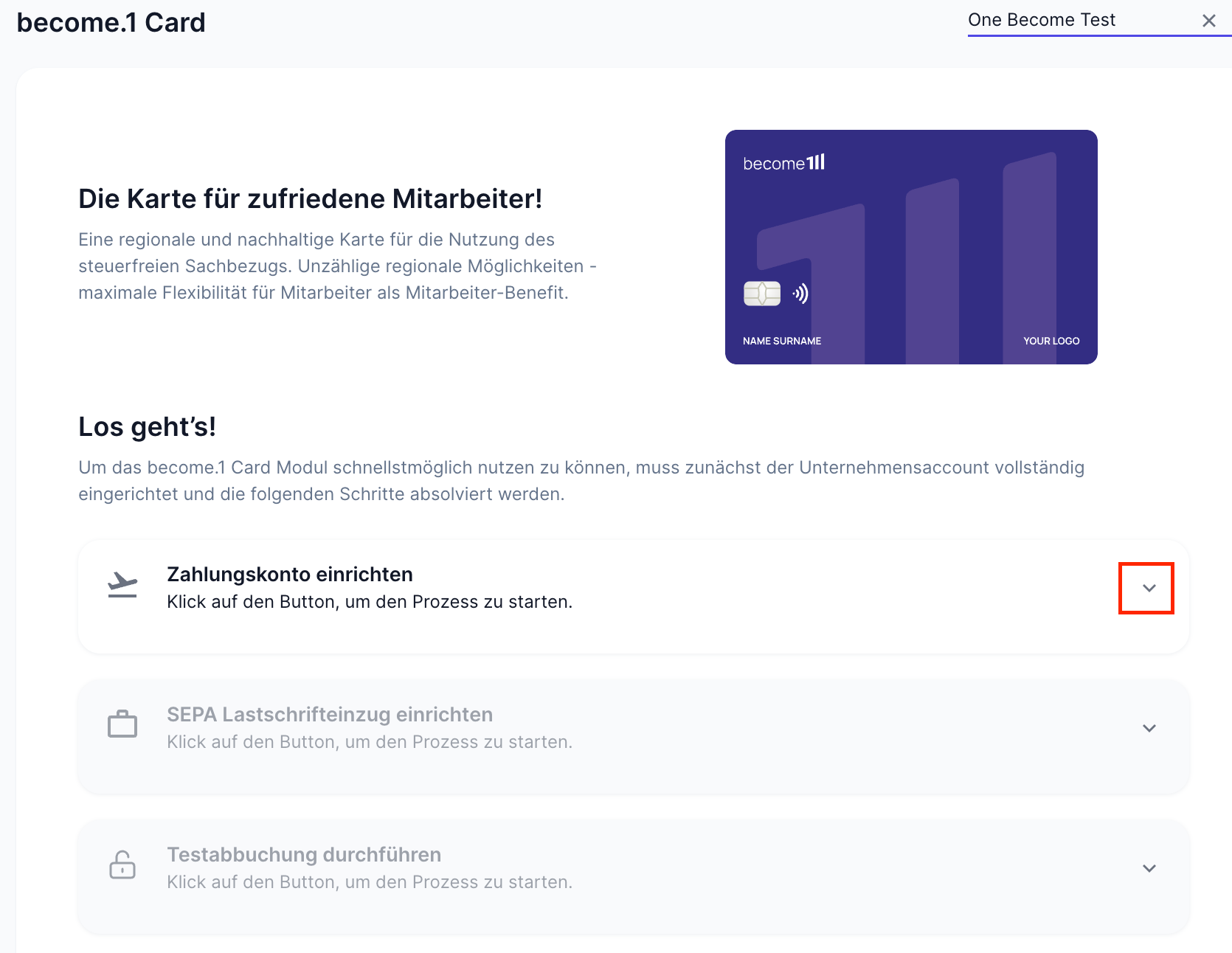
- At the prompt "Set up payment account", click on the small downward arrow and then on Start.
Step 2: Legal foundations & company data
-
Representation: The system asks you if you are a legal representative. Select "Yes" here (even if you are working with a power of attorney – the power of attorney itself will be uploaded at the end).
-
Legal form: Select the registered office of the organization (usually Germany) and the appropriate legal form (e.g., GmbH, UG, association, or other).
-
Company details & tax number: Enter the name of the company, the registration number (commercial register), VAT ID, and the tax number. Additionally, state your industry (business activity).
-
Transaction volume: When asked about the expected monthly transaction volume, you can generally select "less than 10,000 euros".
Step 3: Specify Ultimate Beneficial Owners (UBO)
For regulatory reasons, the legislator requires information about the Ultimate Beneficial Owner (UBO).
-
Enter every natural person who directly or indirectly holds more than 25% of the shares or voting rights in the company.
-
The following are required: Name, date of birth, postal address, and the personal tax identification number of the respective person. (Tip: If this data is not available, ask briefly in your finance department or accounting).
-
A statutory late submission period of a maximum of 90 days after account opening also applies to the personal tax ID.
Step 4: Legitimation & document upload via smartphone
- After data entry on the desktop, the process concludes and switches to your mobile phone. You will receive an SMS for this purpose.
-
Follow the instructions on the smartphone to go through the Ident procedure (identity verification).
- If you are working with a power of attorney, our partner bank Swan will prompt you at the end of this process to upload the signed power of attorney document.
⏳ What happens after activation?
As soon as our partner bank has verified all data and documents, the account is officially opened. The grayed-out areas in the dashboard will now be activated. For the cards to be ready for use, the following administrative steps must still be completed:
-
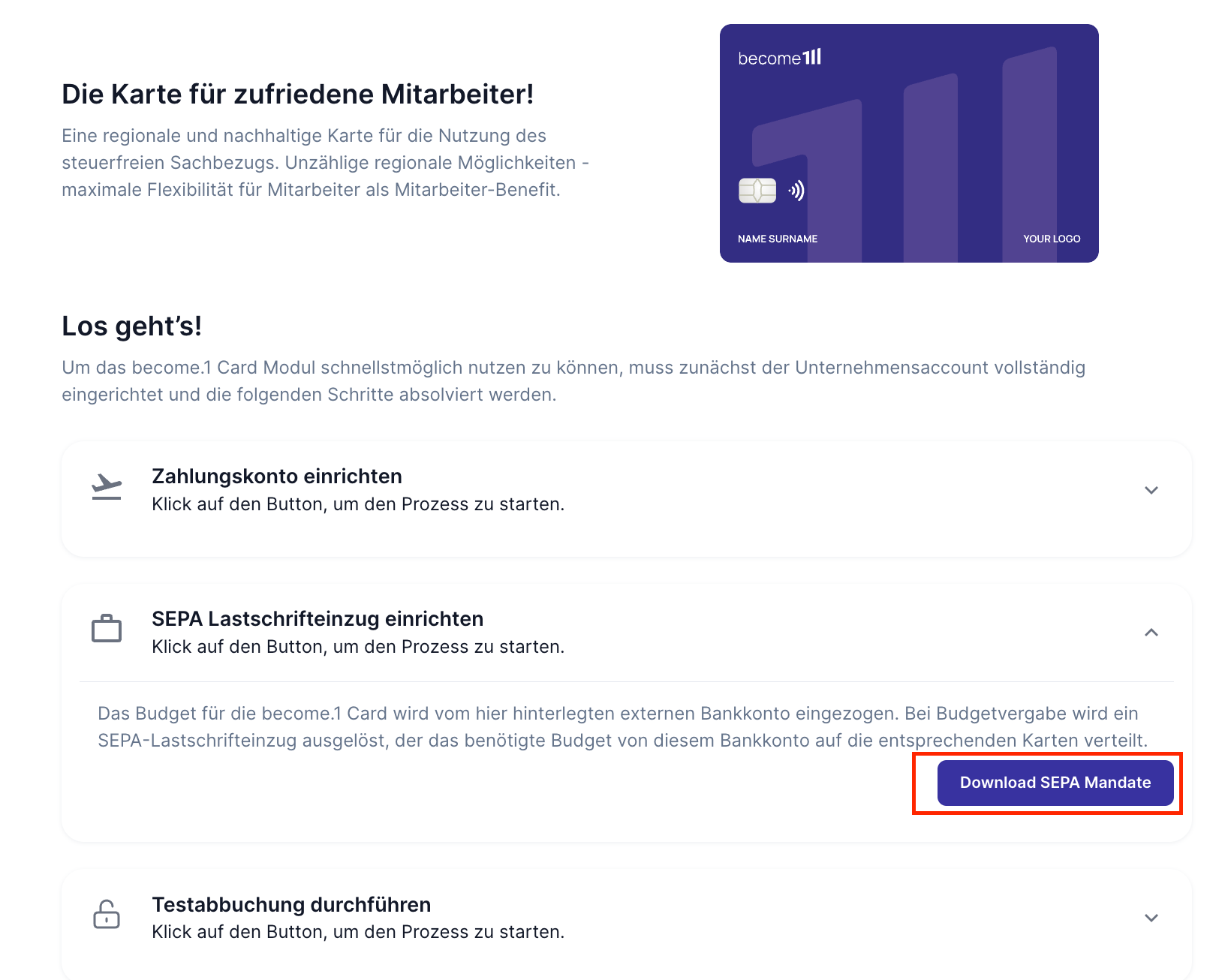
Set up a B2B corporate direct debit mandate: Enter your house bank IBAN in the dashboard, download the B2B direct debit mandate, and submit it signed to your house bank. (Important: This is a corporate mandate without the standard 8-week right of revocation).
-
Perform a test deduction: Click on "Perform test deduction" in the portal. 1 euro will be deducted to check the correct setup of the mandate. This takes approx. 2 to 3 business days.
- Approve cards: As soon as the test deduction was successful, your employees can request the cards in their app. You will then find these requests in the dashboard under "Authorization" and can give final approval there.
Do you still have questions?
Should any discrepancies arise during data entry or if documents are missing, our partner bank will contact you directly. For general questions, our Customer Success Team is available at customer-success@become1.de.