![become1_Logo_black.png]](https://help.become1.de/hs-fs/hubfs/become1_Logo_black.png?width=100&height=33&name=become1_Logo_black.png)
Checklist: What you need beforehand
Before you start, make sure that the following requirements are met:
- Activation: Your employer has activated the "IT Leasing" module for you.
- Active employment: You are receiving a regular salary (not on parental leave, sabbatical, or similar).
- Salary level: Your gross salary is above the statutory minimum wage.
- No garnishments: There is no wage garnishment in place.
Get your device in 5 steps
The ordering process is completely digital and usually takes only a few minutes.
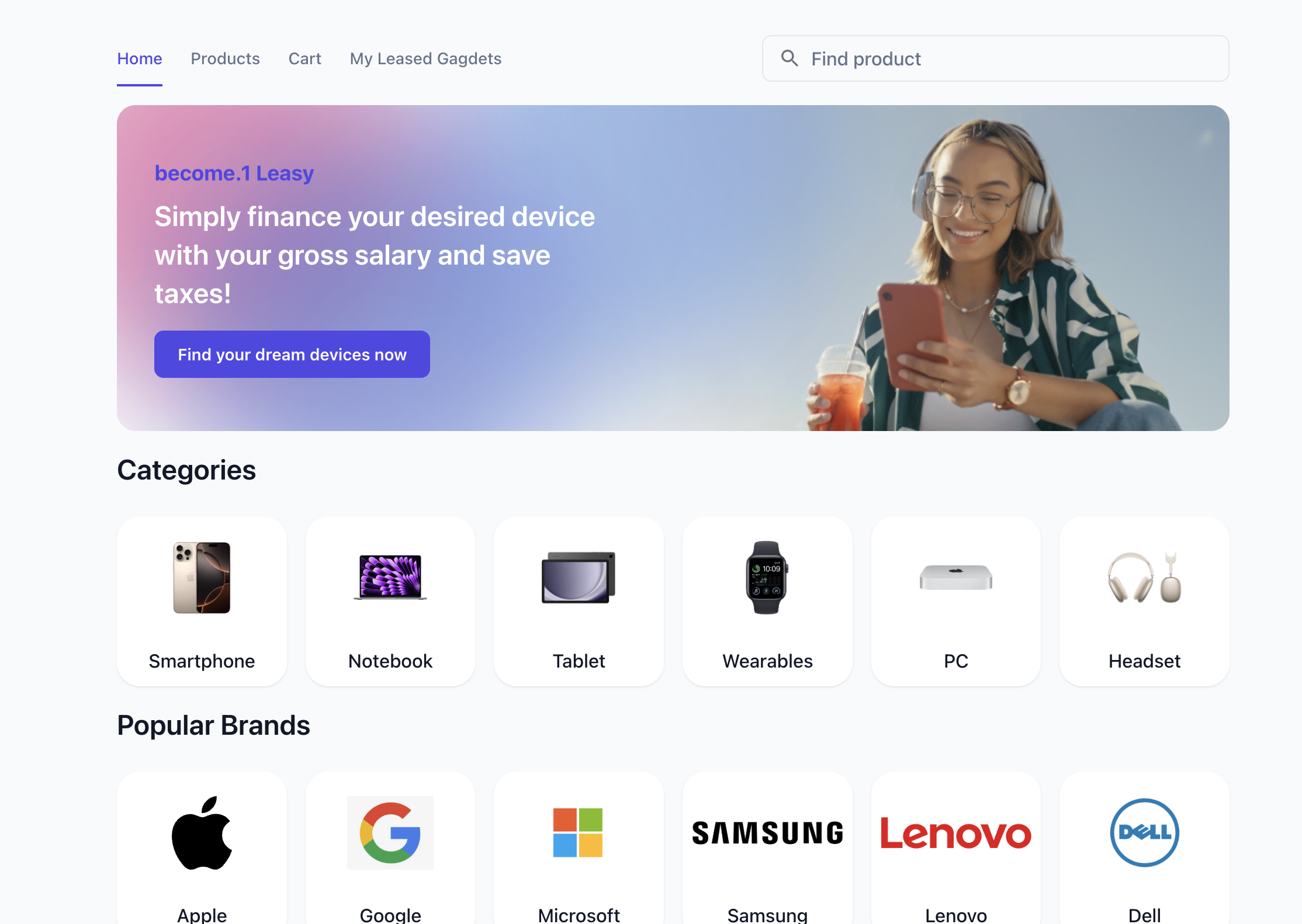
Step 1: Open IT Leasing
Log in to the become.1 platform and click on the "IT Leasing" tile. This will take you directly to the online shop.
 Step 2: Select your dream device
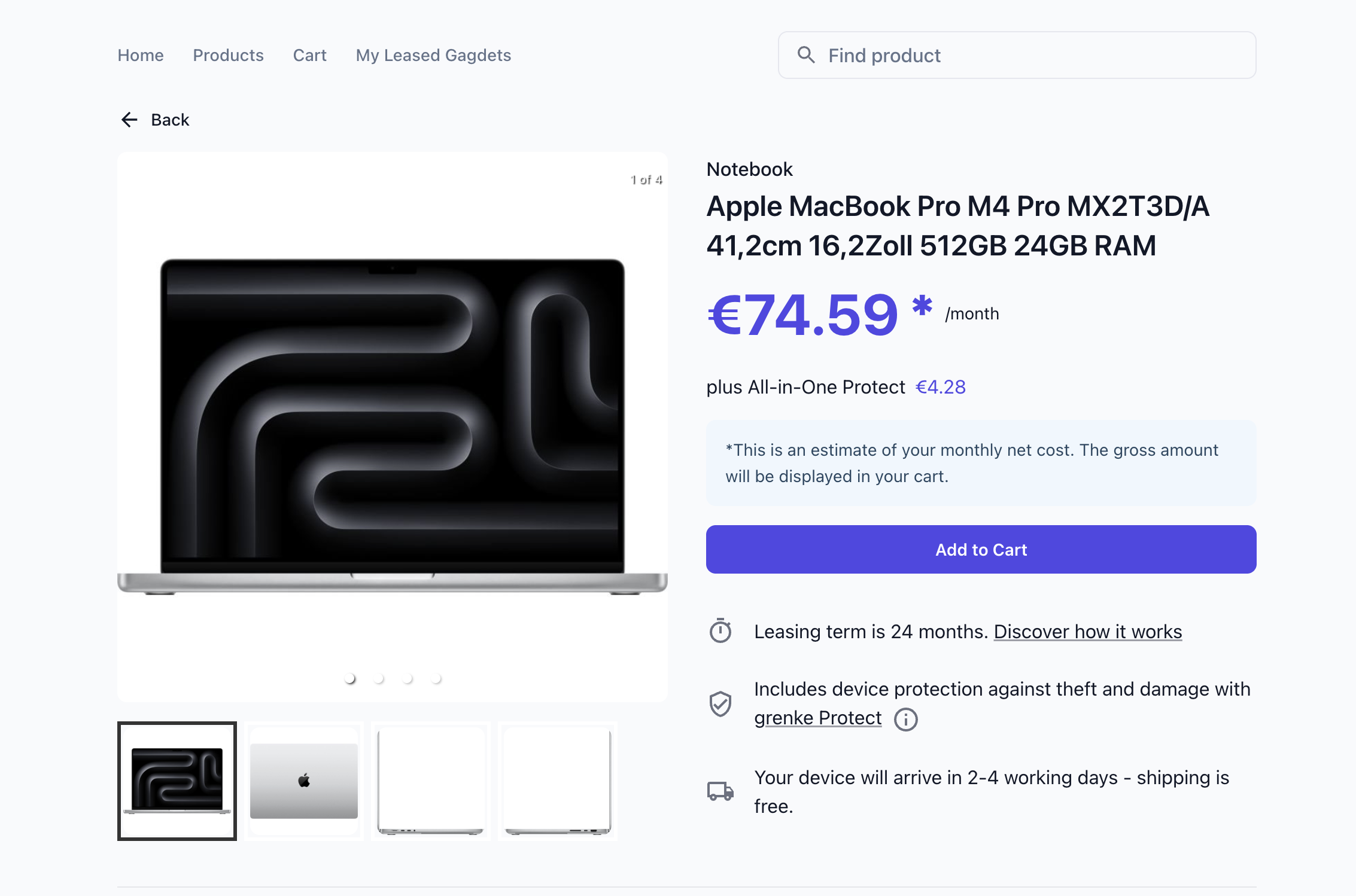
Use the filters and search function to find the right device for you. Simply add your selection to the shopping cart.
Step 3: Proceed to checkout
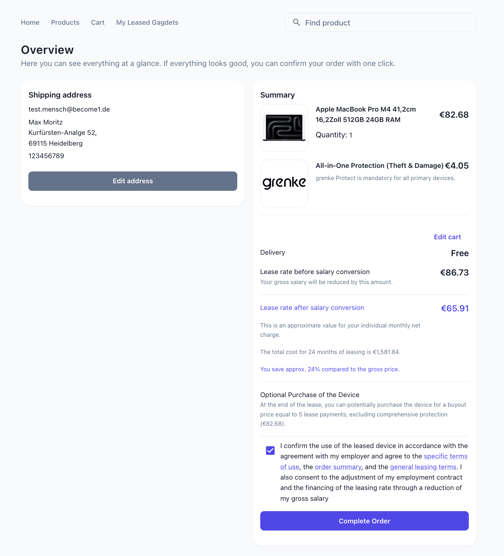
In the shopping cart, click on "Proceed to checkout".
- Email address: Enter your private email address here. This ensures that we can still reach you if you ever leave your company.
- Address: Enter your private delivery address.
- Protection: For your safety, comprehensive device protection is already automatically included.
- Confirmation: Before placing your order, you will confirm the use of the leased device in accordance with the agreements made with your employer and agree to the following points:
- The special terms of use,
- The general leasing conditions,
- The amendment to your employment contract via salary sacrifice, allowing the lease installment to be deducted directly from your gross salary,
- As well as the order overview containing all details.
- Completion: Click on "Place binding order". You can then find your documents (PDF) at any time under "My Devices".
Step 4: Approval by your employer
After you place your order, your employer (e.g., the HR department) will review the request and approve it in the system.
Step 5: Track your delivery
As soon as everything is approved, your order will be shipped, and you will receive a tracking link via email.
Good to know: What happens in the background?
The moment you click the order button, become.1 takes care of the processing.
- Automatic billing: The lease installment is handled automatically each month via your payroll. You do not need to make any manual bank transfers.
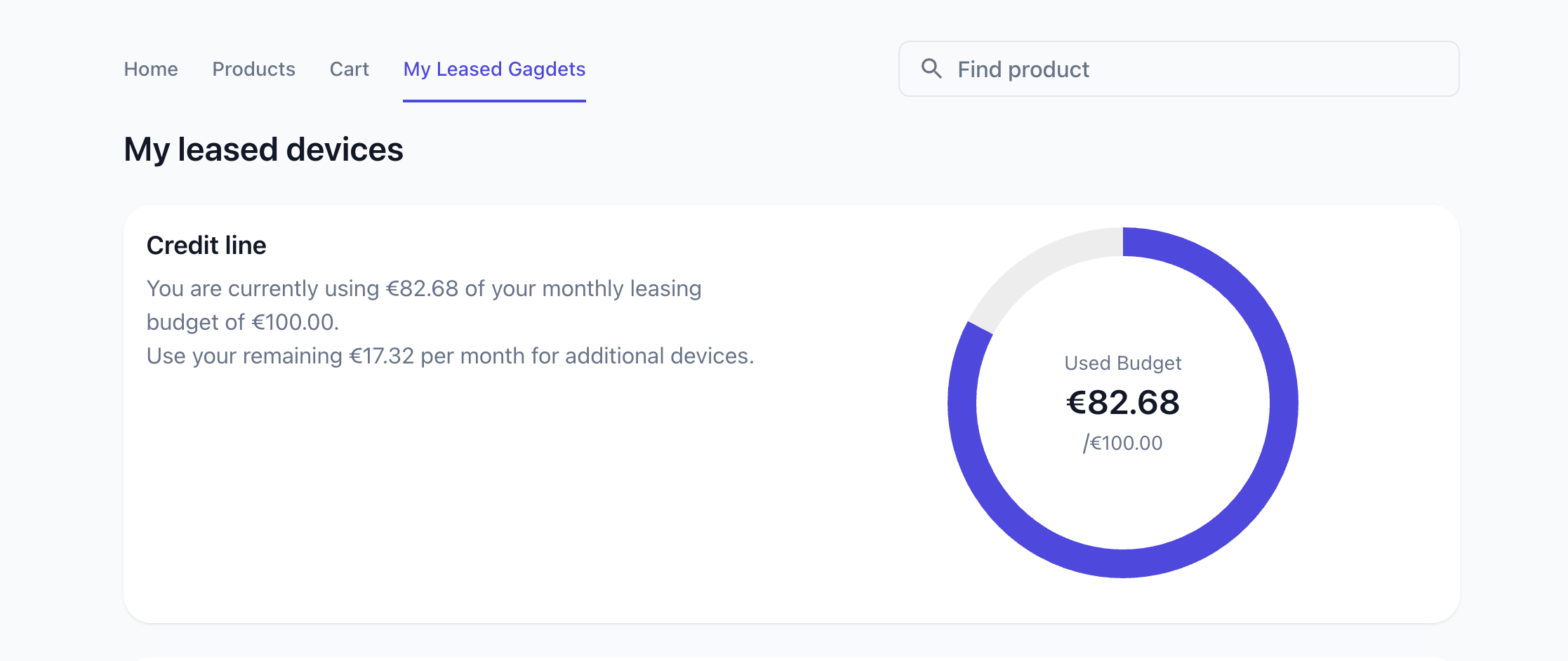
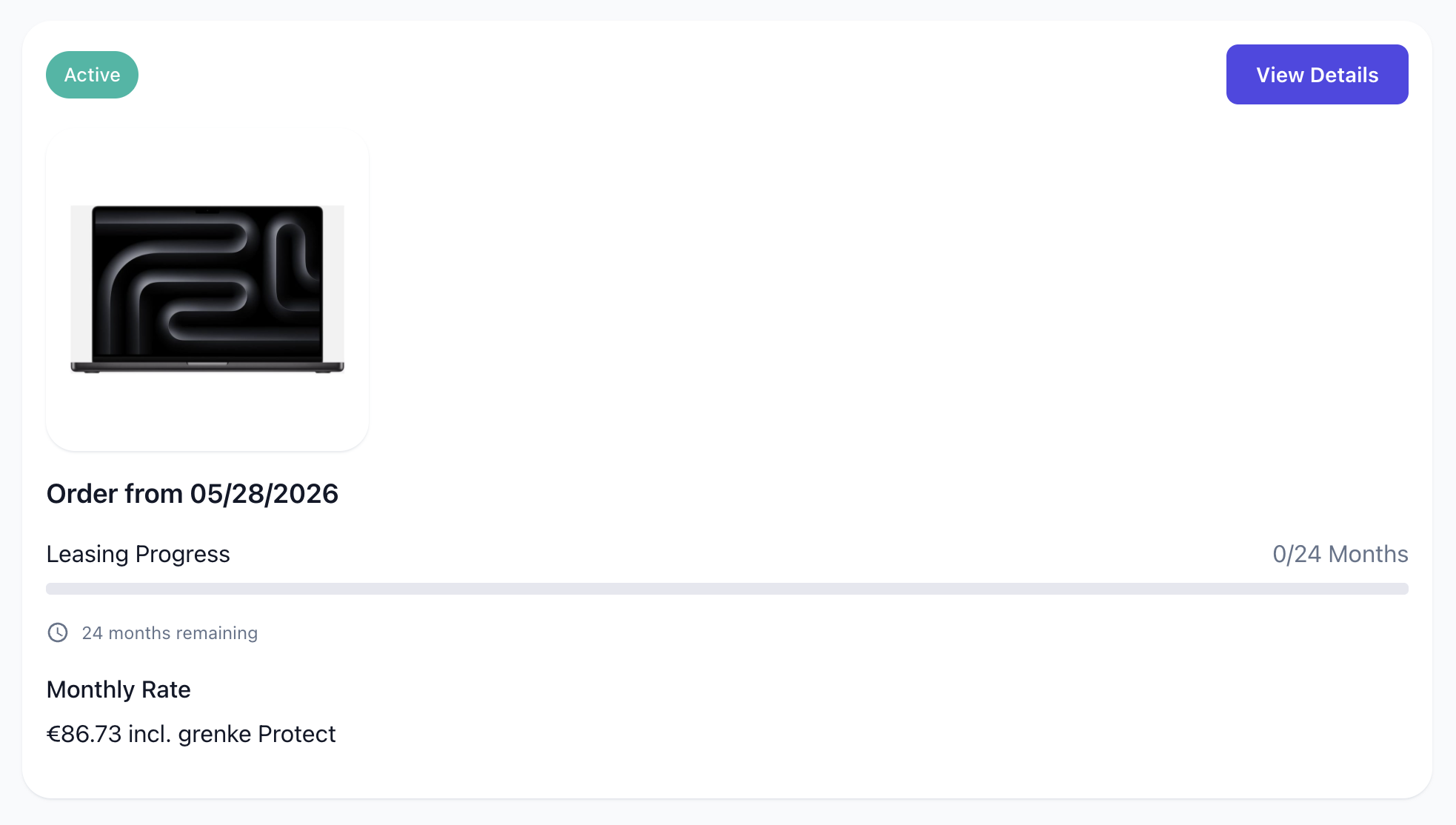
- Status check: You can view the current status of your order under "My Devices". Does it say "Pending"? This means the order is still waiting for internal approval from your employer.
- Looking for more details? Take a look at our article on Delivery & Status.
Good to know: Important info regarding your order
- Accessories & extra devices: In the online shop, you will find main devices (laptops, tablets, smartphones) as well as matching accessories like mice, keyboards, or headphones.
- Combining multiple devices: If your budget allows it, you can lease multiple devices at the same time—for example, a laptop and a smartphone. The platform will show you exactly how much of your budget is left in your shopping cart at any time.
- No reservations: As soon as you complete your order, it is processed directly. Reserving or pre-ordering devices is not possible.
- Internal approval: Your order is not triggered immediately after submission. An authorized person from your company (e.g., from HR or your admin) must first quickly review and approve the request in the system.