![become1_Logo_black.png]](https://help.become1.de/hs-fs/hubfs/become1_Logo_black.png?width=100&height=33&name=become1_Logo_black.png)
Step-by-Step Guide to the Budget Overview
- Log in to the become.1 platform.
- Navigate to Benefits in-kind in the left menu bar and click Budgets.
Available Information & Features
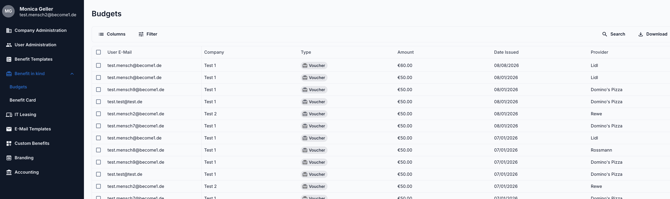
In the overview table, you can view the following details at a glance:
- User Email & Personal ID: Shows you exactly which employee received the benefit.
- Company: Which company entity or division the employee belongs to.
- Type & Provider: The format of the benefit (e.g., Voucher) and, for vouchers, the specific partner (e.g., Lidl, Rewe, Domino's Pizza).
- Value: The exact amount issued (e.g., €50.00).
- Issue Date: The exact date the budget was allocated.
How to use the tools in the overview:
- Search for employees: Enter an employee's email address or name into the Search field in the top right corner to instantly view all benefits issued to that person.
- Filter by type: Click the Filter button to narrow the view down to specific benefit types (e.g., only vouchers or only card budgets).
- Export data: Click Download in the top right corner to export the displayed budget data as a file for your records.
Still have questions?
Did this guide not help or do you have a specific case? Simply send us a message at support@become1.de or reach out via chat. We are happy to assist you and typically get back to you within 48 hours on business days.