![become1_Logo_black.png]](https://help.become1.de/hs-fs/hubfs/become1_Logo_black.png?width=100&height=33&name=become1_Logo_black.png)
Before you start, open the user management in the left side menu. Click on the icon with the plus and the person (+👤) in the top right corner to start the process.
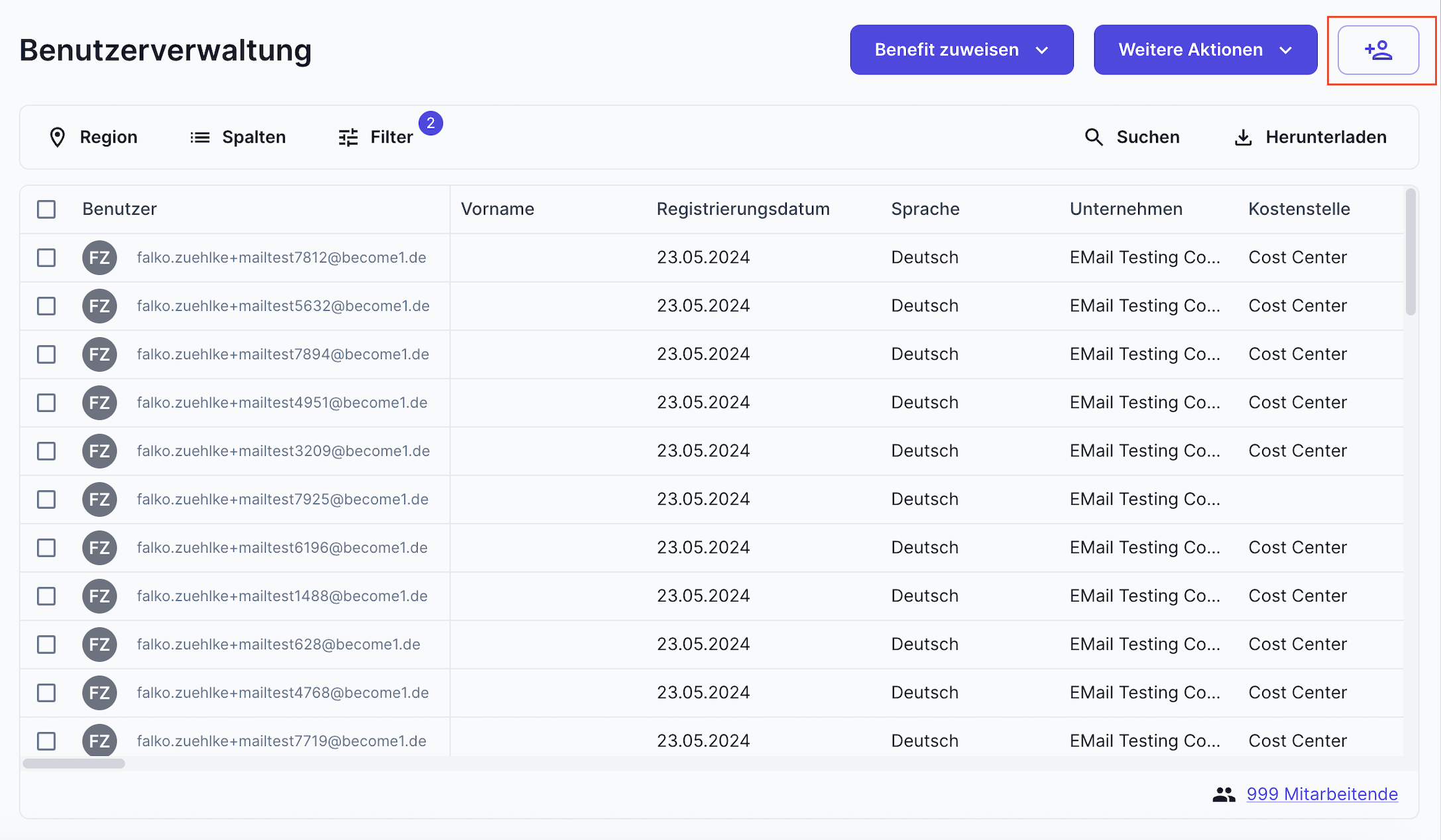
You now have the option to create users individually or perform a bulk CSV import. Choose one of the two methods:
Method 1: Manually create individual users If you choose this option, you will first define the role of the new user:
- Employee: A team member who is meant to receive a benefits budget.
- Administrator: A managing team member who assigns budgets, issues benefits, and manages the platform.
- Employee incl. administration rights: Select both checkboxes if the employee should manage the platform but also receive benefits themselves.
You can find more information on creating administrators here: How do I add a new administrator?
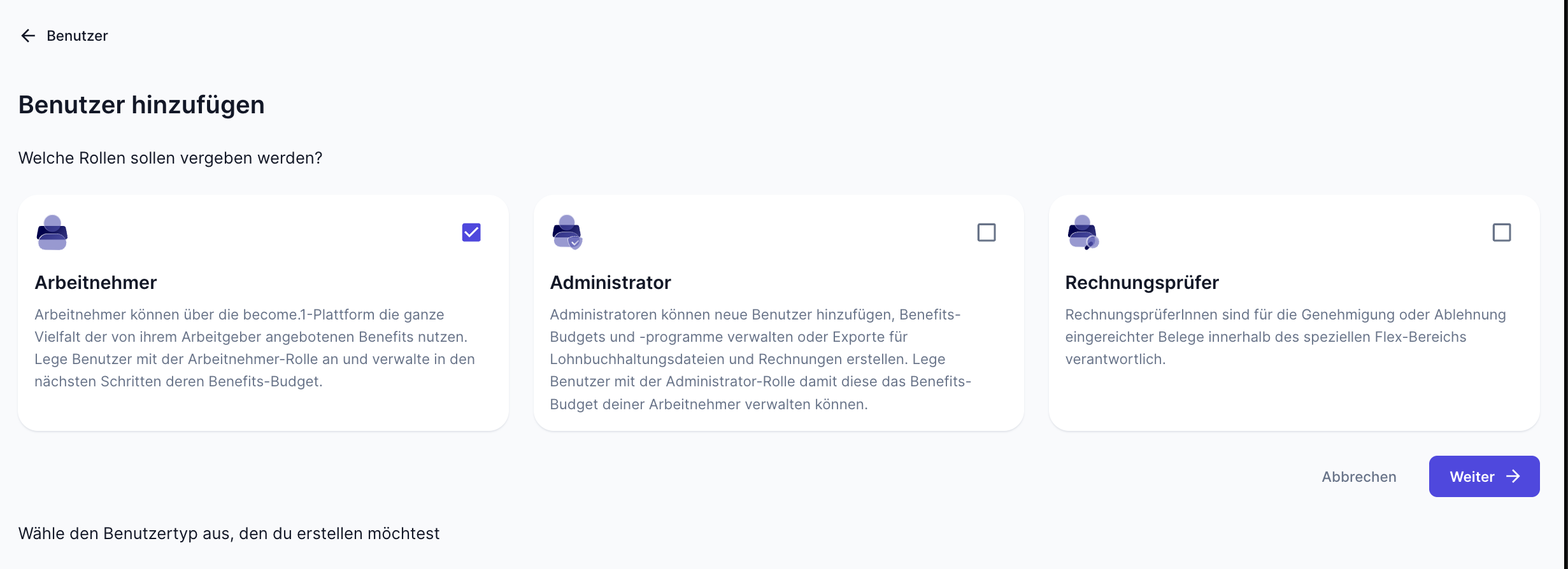
1. Select the desired role(s) and click on Next.
2. Fill in the General Information.
-
Email and language (German or English) are mandatory fields
-
Entering the date of birth is optional.
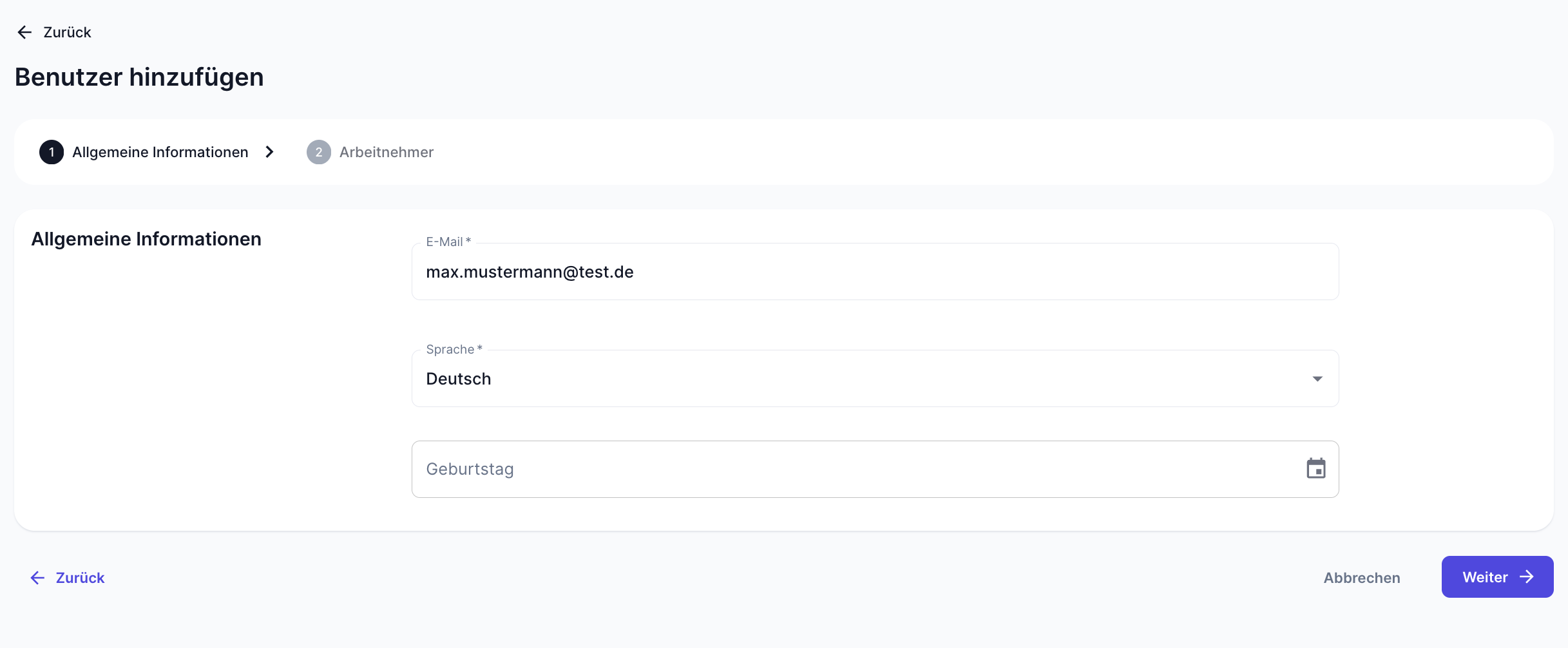
3. Click on Next.
4. Now fill in the Employee Data.
-
Company and Personnel Number are mandatory fields. Make sure that each personnel number is only assigned once to avoid errors!
-
Cost Center and Group are optional.
TIP: Groups help you manage employees as well as their budget and benefit settings. You can find more information about this in our article: How do groups help me with management?.
5. In the bottom right corner, you can use the checkbox "Do not send registration email" to decide whether the user should be invited immediately or not.
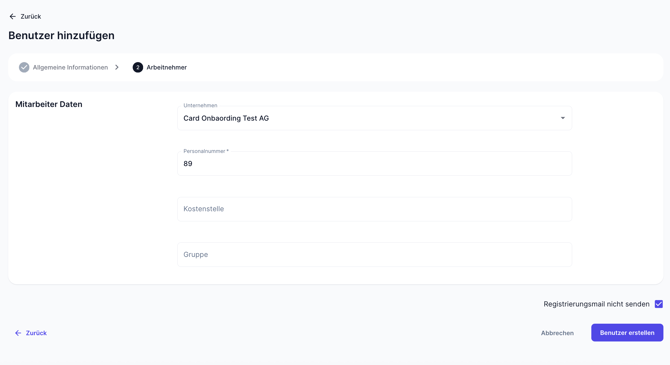
6. click on Create User.
Method 2: Creating multiple users via an import (.CSV file)
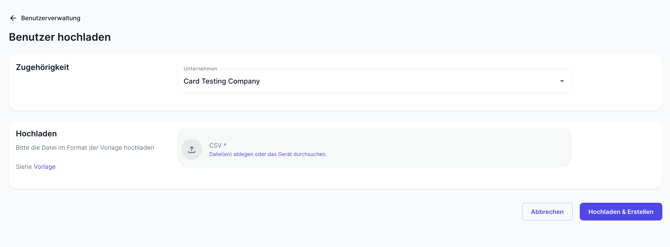
1. Directly on the start page of the user creation setup, click on Upload under "Multiple Users."
2. Under Affiliation, select the company for which you want to create the users.
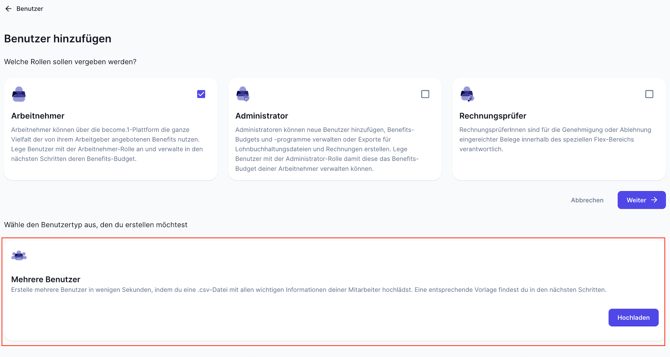
3. Click on Template in the bottom left corner to download the current template.
IMPORTANT: Under no circumstances should you change the structure of the column headers in the template! Doing so will inevitably lead to errors during the upload.
4. Fill in the columns of the template with the required information: Mandatory fields:
- Email Address: A business or private email (access is not possible without an email).
- Personnel Number: Strictly necessary for clean documentation in your payroll (each number must be unique and exist only once).
- Skip send registration link: Enter true if you do not want an invitation to be sent. Enter false if you want the users to receive the email immediately afterwards.
Optional information:
- Groups: E.g., for departments, locations, or working hour models (full-time/part-time).
- Cost Center
5. Save the file and drag it into the designated upload area (or click on "Drop file(s) or browse device").
6. Click on Upload & Create in the bottom right corner.
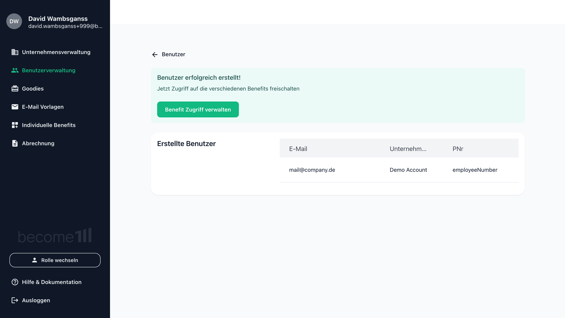
7. After a successful import, you can immediately activate the benefits and budgets for your new employees by clicking on Manage Benefit Access.
Notes
If you initially suppressed sending the registration email (by entering true or checking the checkbox), no link will be sent. You can manually send the invitation later at any time with just a few clicks via the user management. If you have already directly activated benefits for the employees, they will automatically receive additional onboarding information regarding their respective modules along with their registration.
Any questions?
If it still doesn't work despite the instructions or if you have a special case, just send us a message at customer-success@become1.de or write to us in the chat. We are happy to help you – we usually get back to you within 48 hours on business days.